Understanding State
State management is very important if you want your app to be correctly reset between users and compatible with on-demand media production.
If your app is only support the video stream functionality of OmniStream you just need to make sure your scene/level is reset on the disconnect event. For more information on managing you application lifecycle click here
OmniStream State management
State is handled in OmniStream as JSON, with changes to the state requested by the web front-end, actioned by the application and the resultant state returned.
The diagram below shows the flow of this state.
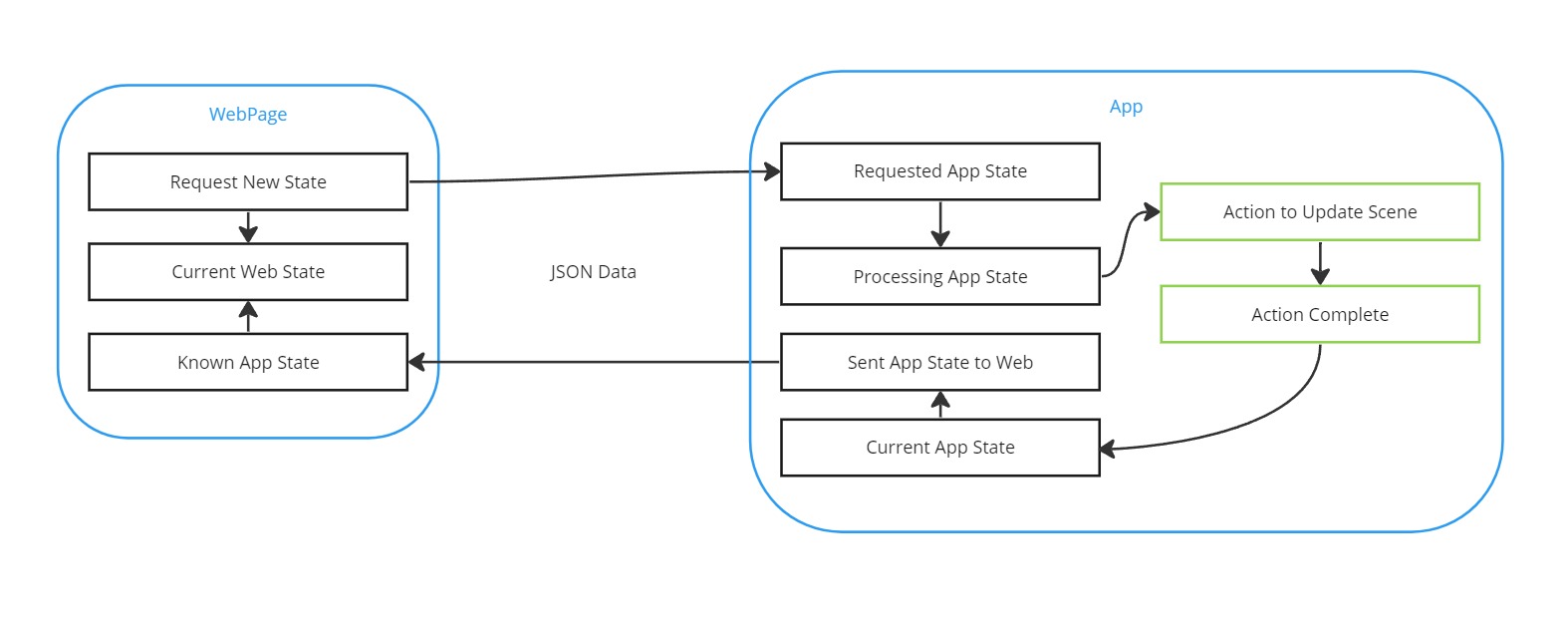
Each state request in OmniStream need to be a complete representation of application state, rather than a partial state that depends on previous state requests, otherwise there is a risk of the application state not matching what was expected. This can be especially prominent in Image mode or if an application has not been reset correctly between connections from different users.
Take the example of a request being made to change the state to show a shape of type cube followed by a separate request to change the colour to red.
With a Video mode connection this would likely function as intended, with the user viewing a red cube after the second request had completed. However, in Image mode a running application is serving requests from multiple users as the same time, and a second user might have requested shape sphere in between the first user's request for shape cube and colour red requests. In that case the first user would see a red sphere after they're second request, rather than the red cube they are expecting. Instead the requests should have contained the entire state in each request e.g. shape cube colour red. With the complete sate being passed there's no chance of the application state not matching when the user is expecting.
It is also important to make sure any relevant changes made directly by a user through interacting directly with something within the application should go through the OmniStream state manager. For example, if there was an option to change the time of day and this was available by either clicking on the sun within the application (when in Video mode) and also available by clicking a button in the webpage hosting the stream (in both Video and Image modes). If when the user clicks on the sun within the application the state manager is not notified of the state change, then the webpage UI cannot be updated to reflect the current state. Additionally, if the user was switched from Video mode to Image mode the time of day change would not be reflected in the state, so may not be reflected in the image the user was served.
When a State change request is made, the request is given an ID and goes into the processing queue. When it comes to be processed you can chose whether the state is processed instantly or if the action is going to take time to complete (waiting for an animation to play for example), either way it is important to make sure each state change request is handled and confirmed appropriately to ensure smooth running of the application. If application state changes are not met in within a (configurable) timeout then OmniStream returns the current state, along with any unmatched portions of state to the webpage for debugging.
Key Points
- In your app you need to make sure all state requests notify the state manager via "Process State".
- State values should always be absolute and not relative.
- Then on state change complete you must notify the state manager and your connect webpage.
- This can be done instantly on state read or using the delayed "Confirm State Change" call.
State messages to your web page
On sending a state message and the processing has started your web page will get a state_processing message returned which contains a RequestId. This can be used to track when that state change is complete, for example if your state change takes multiple frames (e.g. not confirmed state change right away Once a state change is completed you get a state_processing_ended message containing the full current state of your application. In the case of any the requested state not being able to be met by the application (either an unhandled section of state, or a section of state that is attempted to be handled but times out) this is returned as unprocessed_state.
At any time your application can send its current state to the web front-end. This is useful if a state has changed that was not instigated by the front-end, but directly inside the application.
Examples
Simple state request & responses
Initial request:
{
    "colour": "red",
    "shape": "cone"
}
Responses:
{
    "state_processing": {
        "colour": "red",
        "shape": "cone",
    },
    "RequestId": "0"
}
{
    "state_processing_ended": {
        "status": "complete",
        "current_state": {
            "shape": "cone",
            "colour": "red"
        }
    },
    "RequestId": "0"
}
This shows a request for a red cone, which is confirmed with a message reflecting the request and containing a RequestId. This is followed by a state_processing_ended message with the status complete which indicates the request with the matching RequestId has been successfully satisfied.
Unmapped state request & responses
Initial request:
{
    "colour": "red",
    "shape": "cone",
    "dummyStateVariable": true
}
Responses:
{
    "state_processing": {
        "colour": "red",
        "shape": "cone",
        "dummyStateVariable": true
    },
    "RequestId": "1"
}
{
    "state_processing_ended": {
        "status": "unmatched",
        "current_state": {
            "shape": "cone",
            "colour": "red"
        },
        "unprocessed_state": {
            "dummyStateVariable": true
        }
    },
    "RequestId": "1"
}
In this example the state request also contains dummyStateVariable which the application does not handle. The initial response to confirm the request and supple the RequestId is as expected, but in the state_processing_ended we can see that the status is now unmatched, indicating that not all of the state could be matched to what was requested. In the current_state we can see the parts of the state which the application was able to successfully match, in unprocessed_state we can see that the application was unable to match dummyStateVariable. Either we've requested something accidentally (a typo possibly) so we need to make sure the application does handle all expected states.
Hierarchical state
State can be complex to manage, and breaking it down into a hierarchy can be useful to help keep in manageable.
Example:
{
    "shape_config": {
        "primitive": "cone",
        "colour": "red"
    },
    "camera": "freeLook"
}
In this case when wanting to access the shape's colour we can use shape_config.colour.
State to consider
- Environment change
- Time of Day change
- Configuration update
- Animation play (animation frame)
- Camera (name/id or pos/rot/fov)
Removing state fields from state
In some projects it might be necessary to remove some state so it is no longer considered. An example situation could be where there are settings specific to an environment and that environment changes. When the environment changes the old state fields would be omitted in the JSON passed by the web front end, and the rendering application needs to remove them from its internal representation of the state.
For example moving from state:
{
    "environment": "coast",
    "environment_settings": {
        "animated_waves": true
    }
}
To a new state:
{
    "environment": "city",
    "environment_settings": {
        "time_of_day": "night"
    }
}
The setting environment_settings.animated_waves no longer makes sense for the new city environment, so when the environment is switched the application should remove the animated_waves portion of the state. Doing this will mean it is not included in the state returned when the application has completed its state transition. For detail on how to remove a state field please see the relevant Unity and Unreal documentation.
When processing state you can chose to only process new state by selecting "Do Current State Compare" on Process State. This is is more optimal if only parts of the state are changing on each request, but can be useful to disable for testing and debugging.
Working Example
For a full working state example see the Unreal reference project and matching web example