Unity Reference
Supported Versions: Unity 2021, 2022, 2023, Unity 6, 6.1
Key Bindings
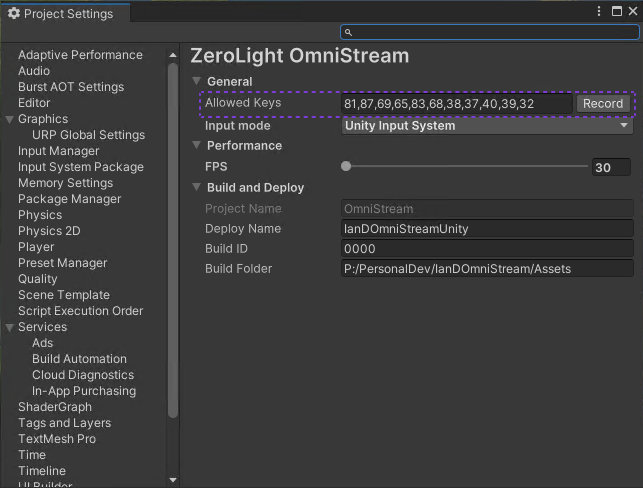
For security reasons, OmniStream does not pass through all input from the web browser, keys have to be explicitly enabled in the plugin settings. A selection of standard keys (WASD etc.) are included by default, these can be removed or extra keys added in the Allowed Keys List. To add keys to the Allowed Keys list, open the OmniStream Settings menu from the ZeroLight menu in the Unity top menu, press the record button, press the keys you wish to add on the keyboard, and press stop. Alternatively you can manually enter ASCII key codes using an online tool such as https://keycode.info/ to find the relevant code.
Audio
To enabled Audio for OmniStream in your project open the OmniStream Audio Configuration menu from the ZeroLight menu in the Unity top bar. From here you can enable/disable audio for OmniStream for all or a selection of the Scenes in your project.
If you add a new Scene to your project after enabling Audio for OmniStream, you will have to use the OmniStream Audio Configuration menu to enable audio for OmniStream for the newly added Scene.
Legacy Input System
The Unity Legacy Input System is supported, but does have issues with mouse input when testing locally (due to the way Unity captures the mouse in the legacy system). If practical for your project, we recommend switching to the new Input System, which is the default when you install the OmniStream plugin. To switch to the Legacy Input System, use the Input Mode dropdown in the OmniStream settings menu.
Cursor
The Unity built-in cursor does not work with OmniStream due to the way it uses the system cursor. If your application always has a cursor on-screen we recommend not using the "pointerlock" connection option and using the cursor on the user's device. This gives the user the best experience as their mouse will work seamlessly with their desktop and the OmniStream stream. If you need to sometimes show a cursor and sometimes not (or need a locally rendered cursor for some other reason) then we recommend implementing a custom cursor.
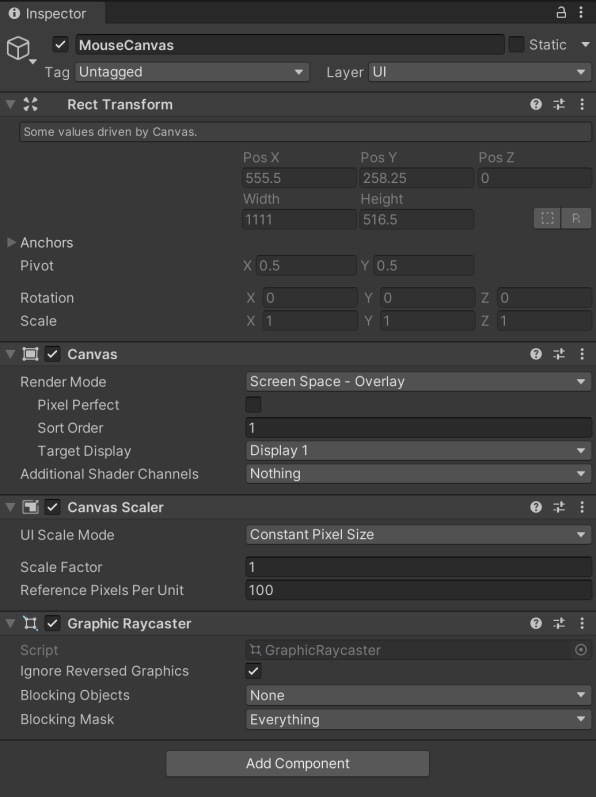
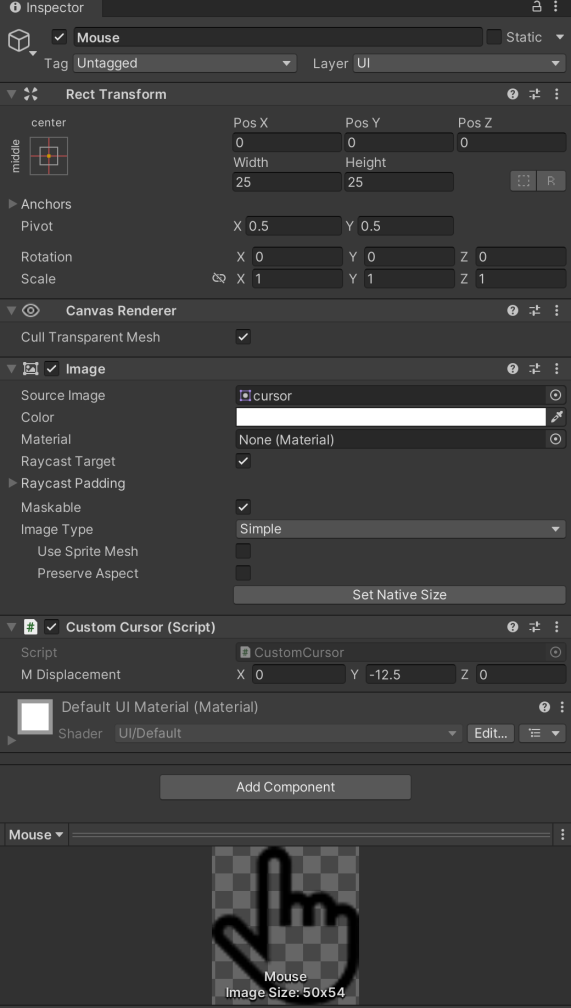
This is simple to do using this reference C# script CustomCursor.cs set up in the following configuration in the Editor:

Events
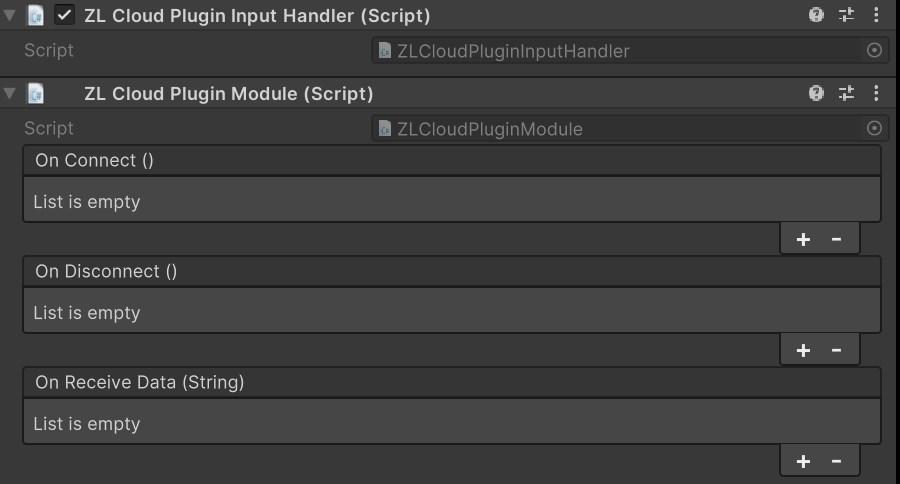
In order to build advanced functionality your Unity application can hook into OmniStream events. The basic Connected and Disconnected events can be useful for triggering intro animations/welcome messages or resetting state. Send Data can be used to send any custom data from your web page to your Unity application. These events are available through the ZL CLoud Plugin Module in the inspector. Any GameObjects referenced in these events should be added to DontDestroyOnLoad, so that in the case if a scene load the event connections do not get broken.
Connected
On Connected Stream
Triggered when a user connects to a stream. This is where the experience should be started, into camera sequences triggered, onboarding information displayed etc.
Disconnected
On Disconnected Stream
Triggered when a user disconnects from a stream for any reason (e.g. browser close, connection drop). This is where any cleanup/resetting of the experience needs to be done, so the experience is ready when the next user connects. When debugging locally the OmniStream systems that normally call this do not run, to simulate this from the browser, call cloudstream.disconnect() from the browser console.
Send Data
Send Data
Messages can be sent to the web page hosting the stream. As with Receive Data the content of the messages is an open JSON schema. This can be used to let the web page hosting the stream know something has happened in the experience.
ZLCloudPluginModule.SendData({"key":"value"})
Receive Data
On Receive Data
Where messages sent from the web page hosting the stream are received. The content of these messages is JSON data, but the schema for the data is not defined by ZeroLight and can be used for whatever data makes sense for your experience. Examples might include UI that is outside of the stream, or for the user to pass some custom text to the experience.
using UnityEngine;
public class StreamMessages : MonoBehaviour
{
    public void OnReceiveData(string data)
    {
        //Perform action on received data
        Debug.Log(data);
    }
}
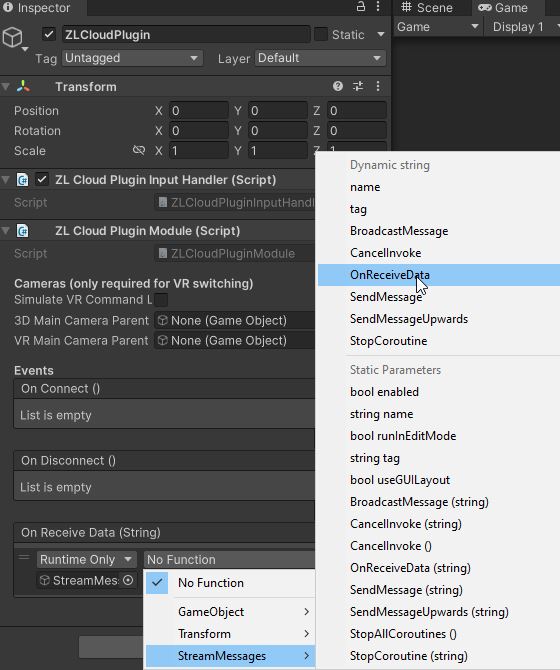
It is advisable to always pass received data into the state manager, this ensures that it is aware of all changes to your scene and will enable you to use advanced features like Image on demand and session sync.
State Management
ZL Cloud Plugin State Manager
For information on the fundamentals of state in OmniStream click here.
Upon receiving data from the web page the JSON will automatically be sent into the state manager to process the state.
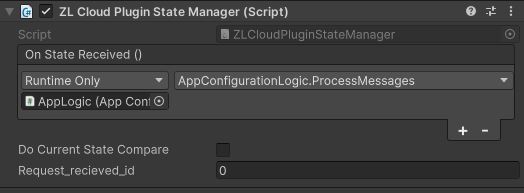
The state manager is automatically added to your scene when you select "Add OmniStream to scene", if it is not there you can trigger "Update OmniStream in scene" to add any missing components.
Once the state is processed successfully, the "On State Received Event" will be raised, you should add any state processing functions to this event to check if the state has changed in order to apply the necessary action.
public class AppConfigurationLogic : MonoBehaviour
{
	public void ProcessMessages()
	{
		if (ZLCloudPluginStateManager.instance.GetStateValue("TruckColour", out object colourValue))
		{
			switch (colourValue)
			{
				case "red":
					ApplyMaterial(m_redMaterial, m_truckMaterial); break;
				case "blue":
					ApplyMaterial(m_blueMaterial, m_truckMaterial); break;
				case "white":
				default:
					ApplyMaterial(m_whiteMaterial, m_truckMaterial); break;
			}
		}

        if (ZLCloudPluginStateManager.instance.GetStateValue("debugbuttons", out object value))
		{
			string response = "{\"debugbuttons\": {\"CameraName\" : [\"FrontCamera\", \"SideCamera\", \"Default\"],\"TruckColour\" : [\"red\", \"white\", \"blue\"]}}";
			ZLCloudPluginModule.getModule()?.SendData(response);
		}
	}
}
Project Thumbnail
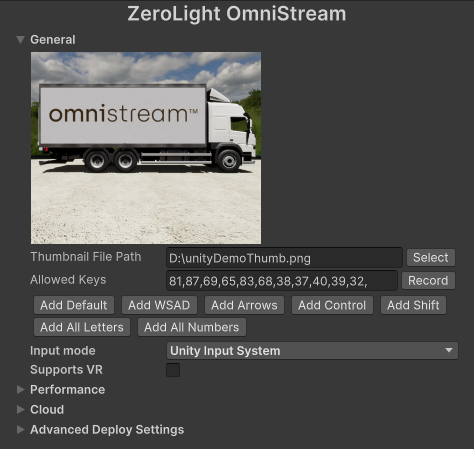
A project thumbnail image can be added to display in Portal for enhanced visibility. This can be added from the plugin settings menu.
Advanced
Delayed App Stream Ready
When developing an app with large amounts of initialization/async loading, you may want to delay stream adoption until a stage where all content is loaded and ready to present to avoid visible loading in the stream. This can be enabled in plugin settings:
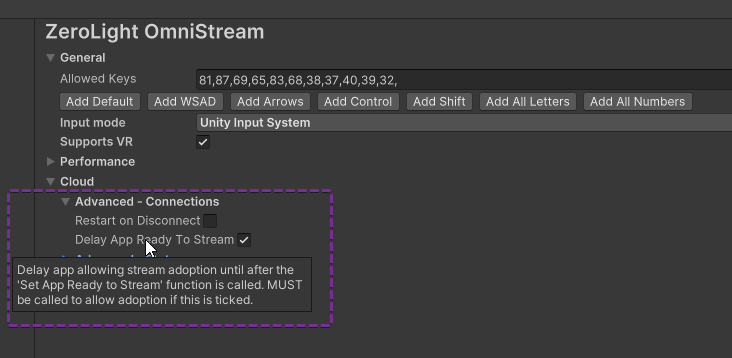
If this is enabled the SetAppReadyToStream function must be called to set the stream state as ready, allowing streaming to begin after pre-stream loading and content setup is complete.
Example:
IEnumerator ExampleDelayedAdoptCoroutine()
{
	//Do some pre-stream content setup (I.E set and process default state for first time user connections)
	ZLCloudPluginStateManager.instance.SetDefaultInitialState("{\"AdvancedTruckColour\": {\"Cab\": \"green\", \"Trailer\": \"red\"}, \"CameraName\": \"Default\"}", true);

	// Wait until readiness to stream is validated
	while(!s_IsAppContentFullyLoaded)
		yield return null;

	//Set ready to stream to allow adoption
	ZLCloudPluginStateManager.instance.SetAppReadyToStream(true);
}
Default Initial Connect State
You may want to set a default JSON state so that users receive a consistent starting state on connections where no explicit onConnect state data is provided. Call SetDefaultInitialState to configure this, providing the JSON data you want set on a connection.
The function also has a bool parameter to optionally trigger processing the default state immediately after it has been set, allowing for advanced usage such as contextually changing the default state between user sessions.
Example:
ZLCloudPluginStateManager.instance.SetDefaultInitialState("{\"AdvancedTruckColour\": {\"Cab\": \"green\", \"Trailer\": \"red\"}, \"CameraName\": \"Default\"}", true);
If a portion of JSON state data is provided in the connection request and default state data is also set, the connection request will merge the two JSON sets, using the onConnect JSON data as an override where matching keys are in both sets. This allows connections to specify some partial state while still ensuring default state for other features of the app.
Connection Modes
You may want to have alternate logic dependant on specific connection modes (I.E Making animation states play in a stream, while matching them instantly in content generation.) This is possible with the 'IsContentGenerationMode' function which returns a boolean to signal what the current connection is serving.
Example:
	if (ZLCloudPluginStateManager.instance.IsContentGenerationMode())
		SnapToAnimationEnd(targetAnim);
	else
		PlayAnimation(targetAnim);
Remove State Value
If it's necessary to remove a field(s) from the current state calling RemoveCurrentStateValue on the state manager and passing the name of the field.
Example:
ZLCloudPluginStateManager.instance.RemoveCurrentStateValue("TruckColour")
For an explanation of which circumstances it might be useful to do this see Removing state fields from state.